


Getting started with a CRM system can feel overwhelming. With dozens of modules, settings, and features to configure, where do you even begin? If you’re asking yourself how to use Zoho CRM software effectively, you’re not alone. Over 300,000 businesses worldwide use Zoho CRM, but the first steps are often the hardest.
The good news? Zoho is designed to grow with you. You don’t need to master everything on day one. This guide walks you through setting up Zoho CRM from scratch, importing your data, and automating your sales process. By the end, you’ll have a working system tailored to your business needs.
At Techcom Africa, we’ve helped hundreds of Nigerian businesses implement Zoho solutions. Whether you’re a startup in Lagos or an established company in Abuja, the fundamentals are the same.
Let’s break it down.
Want to streamline your business with Zoho? Book a consultation session with our Zoho Experts.
Step 1: How to set up your Zoho CRM account
Navigate to zoho.com/crm and sign up. The onboarding wizard will guide you through entering your company information, choosing your currency, and setting your time zone. For Nigerian businesses, ensure you select NGN as your currency and set your fiscal year to align with local tax requirements.
During setup, you’ll face a choice: start with sample data or a blank account. If you’re new to CRMs, choose sample data. It populates your account with fictional leads, contacts, and deals so you can experiment immediately.
Once setup completes, you’ll land on the home page. This dashboard becomes your daily command center, showing activities, tasks, and key metrics at a glance.
Step 2: Understand Zoho’s core terminology and navigation
Zoho uses specific terminology that can confuse newcomers. Here’s the short version:
Modules are the tabs at the top of your screen. Think of them as filing cabinets. Leads, Contacts, Deals, and Accounts are the main modules where your customer data lives.
Records are complete sets of information about a customer. A lead record contains their name, email, phone number, company details, and interaction history.
Fields are individual data points within a record, like “Email Address” or “Phone Number.”
Views let you switch how records are displayed. List view shows rows of data. Kanban view displays deals as cards moving through pipeline stages. Canvas view offers a completely customizable layout.
Filters help you find specific records quickly. Instead of scrolling through thousands of contacts, you can filter by city, industry, or deal size.
The Setup page (found in the top-right menu) is your control panel. This is where you configure workflows, customize fields, and manage user permissions.
Understanding the difference between Leads, Contacts, and Deals is crucial. Leads are potential customers you haven’t qualified yet. Contacts are people you have an established relationship with. Deals are active sales opportunities linked to those contacts.
Step 3: Import your data into Zoho CRM
Most businesses switching to Zoho have existing customer data in spreadsheets. Importing this data correctly saves hours of manual entry later.
Before importing, prepare your data:
- Clean up duplicates in your spreadsheet
- Standardize formats (especially phone numbers and dates)
- Remove unnecessary columns
Zoho offers three ways to bring data in:
- Web forms for capturing new leads directly from your website
- Import from Excel or CSV files for bulk data migration
- API integration for automated syncing with other systems
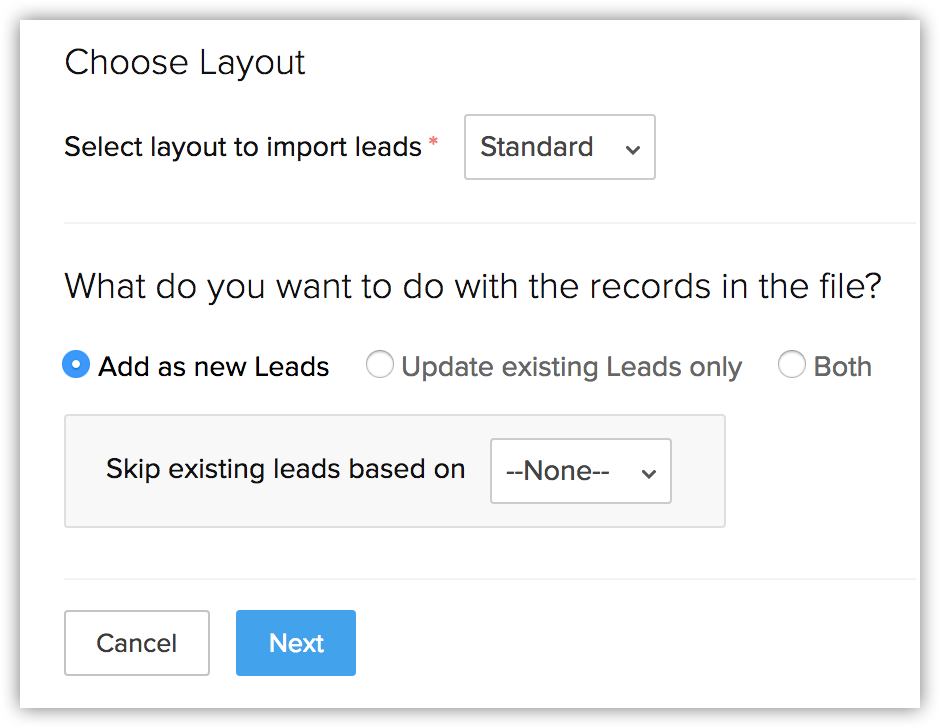
For most users, the import wizard is the way to go. Navigate to Data Administration > Import, select your target module (Leads or Contacts), and upload your spreadsheet. Zoho will ask you to map your spreadsheet columns to CRM fields. This step is critical. If your spreadsheet has a “Company Name” column, map it to the “Account Name” field in Zoho.
Preview your data before finalizing the import. Check for formatting errors and ensure phone numbers are correctly recognized. For Nigerian businesses, verify that local phone number formats are preserved.
Step 4: Customize modules and fields for your business
Out of the box, Zoho CRM is configured for a generic sales process. Your business likely has unique needs that require customization.
Start with fields. If you’re in real estate, you might want to add a “Property Type” field. If you’re in finance, “Investment Amount” might be essential. You can add custom fields to any module and control who can see or edit them.
Page layouts let you organize fields logically. Group related information together. Put contact details in one section, company information in another, and custom data in its own area.
If your business has multiple sales processes (for example, residential vs. commercial real estate), set up multiple sales pipelines. Each pipeline can have its own stages, fields, and automation rules.
Don’t over-customize too early. Start with the basics, use the system for a few weeks, then add fields as you discover what information you’re consistently tracking elsewhere.
Step 5: Set up users, roles, and permissions
Your CRM contains sensitive customer data. Proper user management ensures the right people see the right information.
Add team members from the Setup page. Each user needs an email address to receive login credentials. Zoho CRM’s free tier supports up to 3 users, while paid plans scale to hundreds.
Understanding Roles vs Profiles trips up many new administrators:
- Roles define your organizational hierarchy and data access levels. A sales manager’s role might see all deals in their region. A sales rep’s role might only see their own deals.
- Profiles control which features users can access. You might give sales reps access to create leads, but restrict them from deleting records.
Set up data sharing rules to extend access beyond the basic hierarchy. If your marketing team needs to see lead sources but shouldn’t own deals, data sharing rules make this possible.
Enable two-factor authentication for all users. It’s a simple security step that protects your customer data.
Want to streamline your business with Zoho? Book a consultation session with our Zoho Experts.
Step 6: Automate your sales process with workflows
Once your data is organized, automation becomes your best friend. Zoho’s workflow engine handles repetitive tasks so your team can focus on selling.
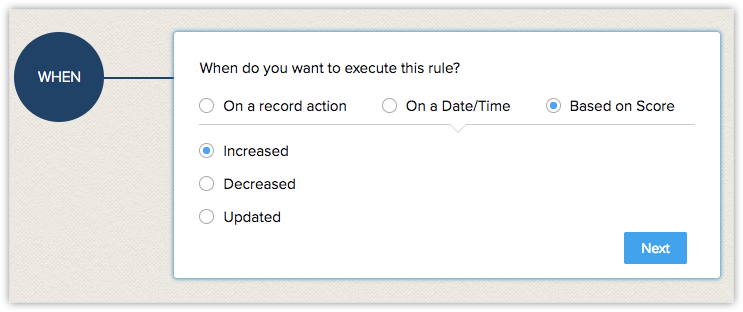
Workflow rules follow a simple logic: When this happens, do that.
For example:
- When a deal moves to “Proposal Sent,” automatically create a follow-up task
- When a lead is created from your website, assign it to the sales rep for that territory
- When a deal value exceeds ₦5 million, notify the sales manager
Start with basic automations and build complexity over time. A common beginner workflow assigns new leads based on geographic territories. This ensures prompt follow-up without manual routing.
Blueprint takes automation further. It’s a visual process builder that guides sales reps through complex sales cycles step by step. If your process requires multiple approvals or specific documentation at certain stages, Blueprint enforces these requirements.
Zia, Zoho’s AI assistant, offers sales predictions and recommendations. It analyzes your historical data to suggest which deals are likely to close and identifies anomalies in your pipeline.
Test every workflow before going live. Create a test lead or deal and walk through the process yourself. Verify that emails are sent, tasks are created, and notifications reach the right people.
Common mistakes to avoid when starting with Zoho
We’ve seen these errors derail Zoho implementations:
Importing messy data. Clean your spreadsheets before importing. Duplicates and formatting errors multiply once they’re in your CRM.
Over-customizing too early. Start with Zoho’s defaults. Customize after you understand what your team actually needs.
Skipping user training. Even intuitive software needs onboarding. Invest time in training your team on your specific workflows.
Not setting up data sharing rules. Without proper permissions, users either see too little (and can’t do their jobs) or too much (creating security risks).
Ignoring mobile setup. Field sales teams need the Zoho mobile app configured with offline access and proper sync settings.
Trying to use all features at once. Master core CRM functions first. Add advanced features like CPQ or inventory management once your team is comfortable.
Forgetting about backups. Regular data exports protect you from accidental deletions and provide peace of mind.
Using the wrong implementation partner. Avoid handing over your system implementation to an inexperienced Zoho partner.
Get expert help with your Zoho implementation
Zoho is designed for self-service, but implementation partners can accelerate your success significantly. At Techcom Africa, we specialize in helping Nigerian businesses get the most from Zoho software.
As a certified Zoho partner, we offer:
- Industry-specific customization for real estate, finance, healthcare, and other sectors
- Local market expertise, including Nigerian tax configurations, payment gateway integrations, and compliance requirements
- Hands-on training for your team, delivered in person or virtually
- Data migration assistance to ensure your historical data transfers cleanly
- Ongoing support as your business grows and your needs evolve
When should you DIY versus hiring help? If you have a simple sales process and tech-savvy staff, Zoho’s documentation and free trial might be sufficient. But if you’re migrating from another CRM, have complex workflows, or need integration with existing business systems, working with a partner like Techcom Africa saves time and prevents costly mistakes.
Our approach is simple: “We are happy in your wins.” We don’t just implement software. We guide your team through hands-on training, offer full support, and ensure you maximize the value of your Zoho investment.
Ready to transform how your business operates? Contact Techcom Africa for a free consultation. We’ll help you choose the right Zoho products, configure them for your specific needs, and train your team for success.
Whether you need Zoho CRM for sales management, Zoho Books for accounting, or the complete Zoho One suite as your business operating system, we have the expertise to make your implementation smooth and successful.
Frequently Asked Questions
How difficult is it to learn Zoho software how to use as a complete beginner?
Zoho CRM has a moderate learning curve. The basics (adding contacts, tracking deals, sending emails) can be learned in a few days. Advanced features like workflow automation and customization take a few weeks to master. Zoho provides extensive documentation, video tutorials, and a free trial so you can learn at your own pace.
Want to streamline your business with Zoho? Book a consultation session with our Zoho Experts.
Can I use Zoho software how to use guides for Nigerian businesses specifically?
Yes, though most official Zoho documentation focuses on global markets. Nigerian businesses should pay attention to currency settings (NGN), local tax configurations, and payment gateway integrations. Working with a local implementation partner like Techcom Africa ensures your Zoho setup aligns with Nigerian business practices and regulations.
What is the best Zoho software how to use approach for small businesses on a tight budget?
Start with Zoho CRM’s free tier, which supports up to 3 users with core features. Add Zoho Books free edition if you need basic accounting (available for businesses with under $50,000 annual revenue). Upgrade to paid plans only when you outgrow these limits. This lets you build familiarity with Zoho without upfront costs.
How long does a typical Zoho software how to use implementation take for a small team?
A basic Zoho CRM implementation for a 5-10 person team typically takes 2-4 weeks. This includes account setup, data migration, customization, and user training. Complex implementations with multiple integrations or extensive customization can take 6-8 weeks. Working with an experienced partner can reduce this timeline significantly.
What support options are available when learning Zoho software how to use?
Zoho offers multiple support channels: comprehensive help documentation, community forums, email support (even for free plans), and paid support plans with faster response times. For businesses needing hands-on assistance, Zoho’s Jumpstart service and certified implementation partners like Techcom Africa provide personalized setup and training support.
Is Zoho software how to use training available for non-technical team members?
Absolutely. Zoho’s interface is designed for business users, not technical experts. Most features require no coding knowledge. Zoho Academy offers free courses, and the interface includes guided tours and contextual help. For teams needing structured learning, implementation partners can provide customized training sessions tailored to your specific workflows.